
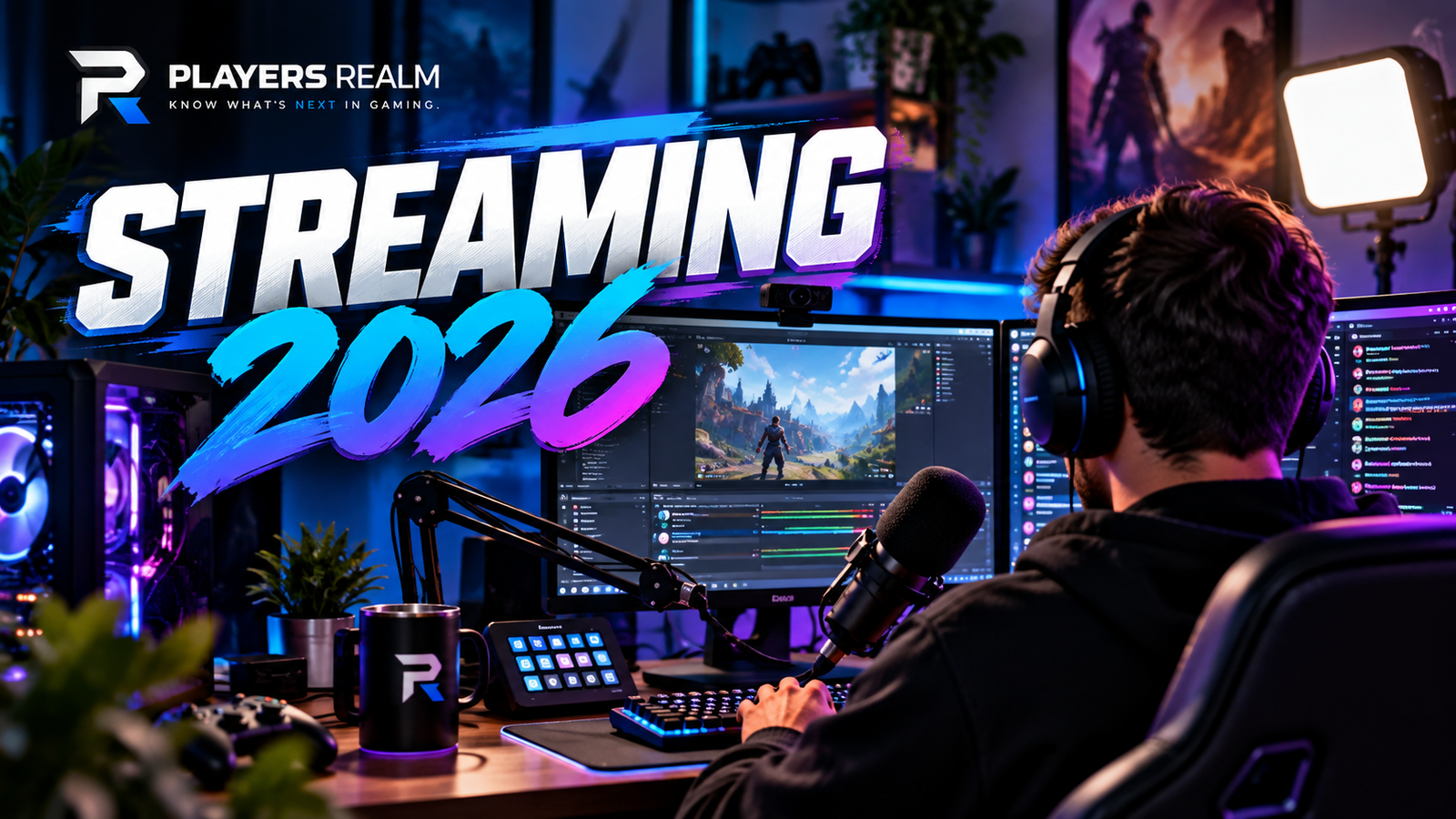
Starting a gaming stream can look complicated when established creators are using dual-PC setups, expensive cameras, professional lighting, capture cards and desks packed with equipment. The good news is that none of that is required for your first stream.
In 2026, you can start with equipment you may already own. What matters most is having somewhere to stream, a stable connection, understandable audio and a setup capable of running your game and broadcast reliably.
This Players Realm guide takes you from zero to your first stream, separating what you actually need from upgrades that can wait.
What do you need to start streaming?
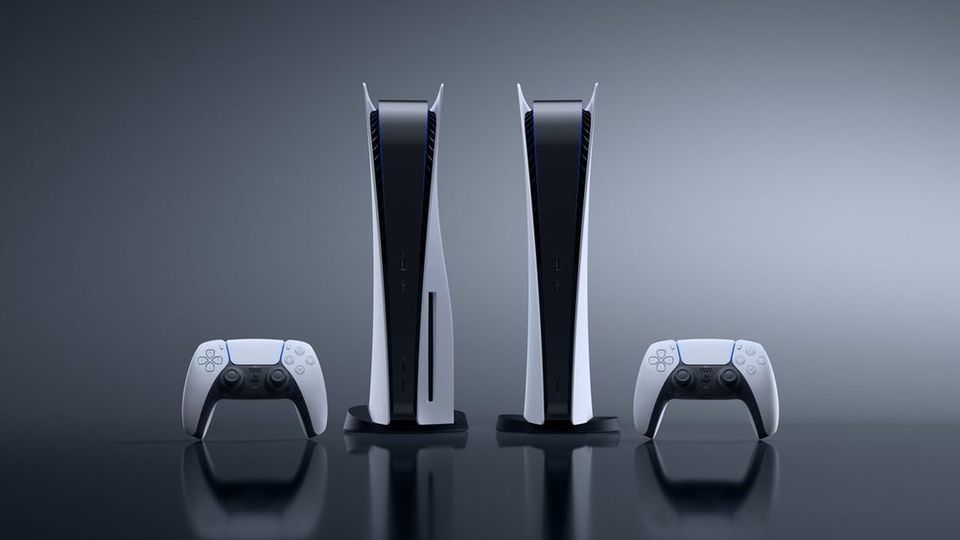
Your minimum setup depends primarily on where you play. PC players can broadcast directly from their computer. Modern consoles also provide built-in streaming options, while a capture card becomes useful when you want to send console gameplay to a PC for greater production control.
Start with five things: a device to play on, an internet connection, a streaming platform, broadcasting software or tools, and a way to capture your voice.
A webcam is optional. A second monitor is optional. RGB lighting, a Stream Deck, an XLR microphone and an expensive capture card are upgrades rather than requirements for pressing the Go Live button.
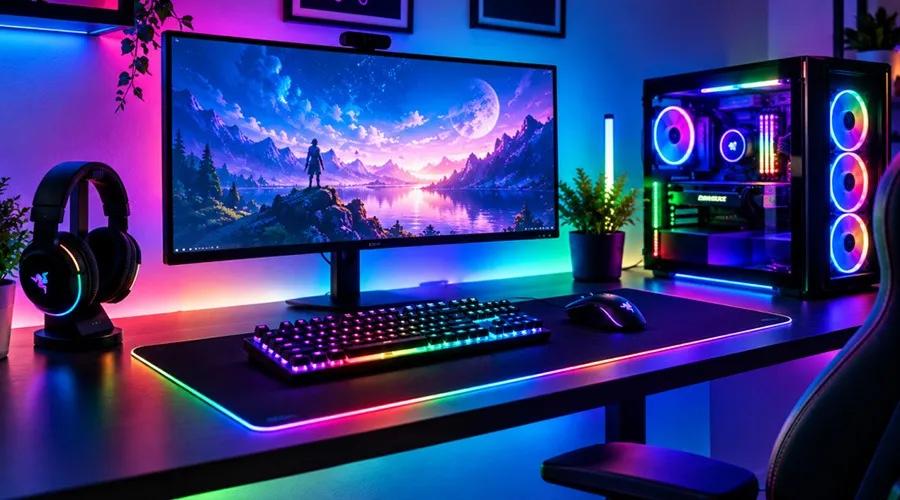
PC or console: which is easier for beginners?
PC gives you greater control. Software such as OBS Studio can combine gameplay, webcam, microphone, images, browser sources, alerts and other elements into one broadcast.
The tradeoff is that your computer needs to run the game while also handling the stream. Depending on the hardware and game, you may need to reduce graphical settings, stream resolution or frame rate.
Console streaming can be simpler because platforms such as PlayStation and Xbox provide integrated broadcasting features. It offers less flexibility than a full PC production, but it can be enough to get started.
A capture card becomes useful when you want to play on console while producing the broadcast through a PC with scenes, overlays, cameras and additional tools.
Twitch or YouTube: where should you stream?
Twitch and YouTube are two major options for game streaming, but they approach content differently.
Twitch is heavily centered around live broadcasts, channels and streamer communities. For someone primarily interested in the traditional live-streaming experience, it remains a natural option.
YouTube combines live broadcasts with videos, Shorts, search and recommendations. That gives creators opportunities to turn stream moments into other formats that can continue being discovered after the broadcast ends.
There is no universally best platform for everyone. For your first stream, choose one and learn the workflow before trying to maintain several platforms simultaneously.
What is OBS Studio?
OBS Studio is free and open-source software for video recording and live streaming, available for Windows, macOS and Linux.
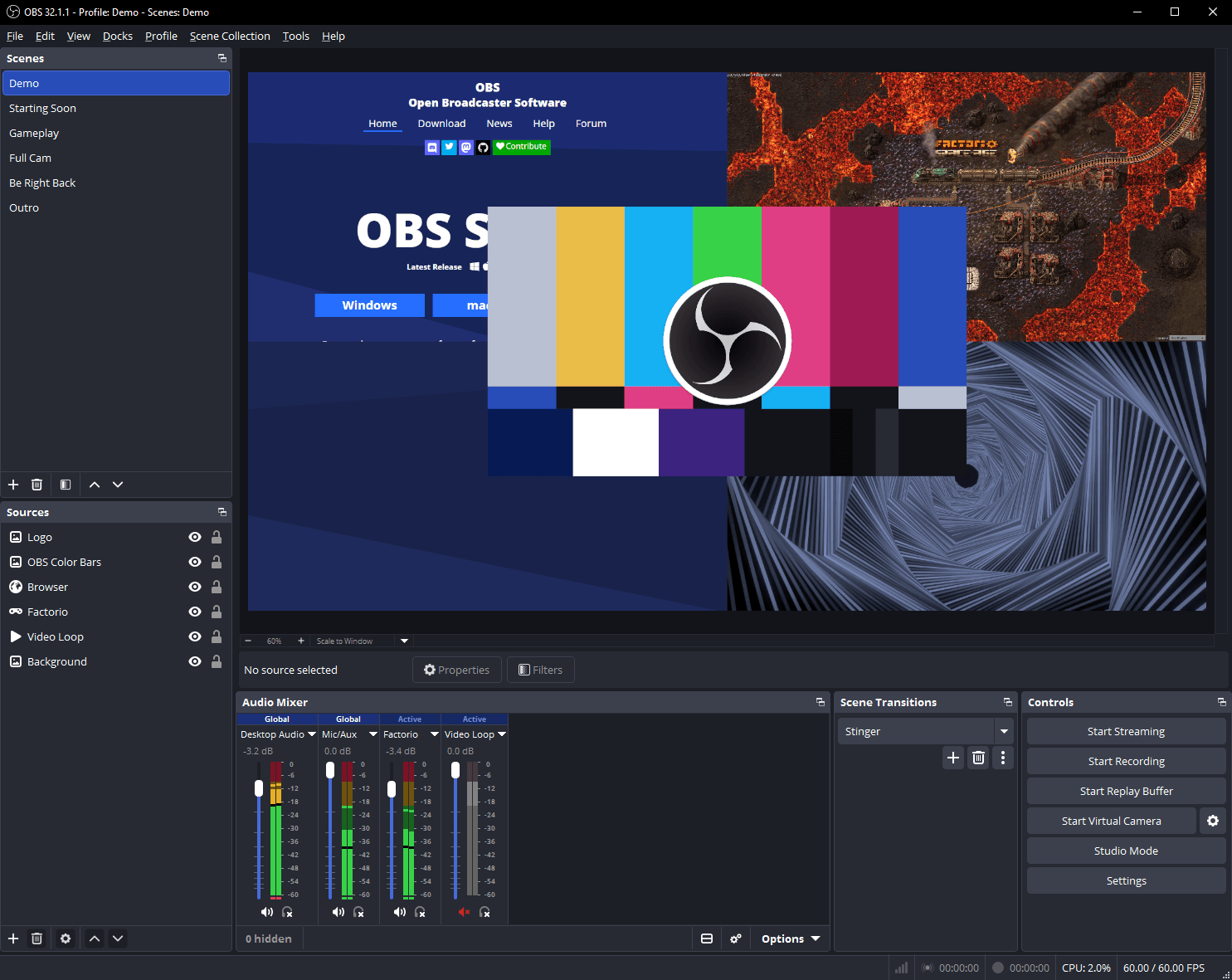
OBS is organized around scenes. One scene might display only your game, another might combine gameplay and webcam, and another might be a starting-soon screen. Scenes contain sources such as game capture, microphones, cameras, images and browser elements.
The interface can look complicated at first, but a beginner needs only a small part of it.
How to configure OBS for your first stream
After downloading OBS Studio from the official website, run its Auto-Configuration Wizard. It can evaluate your hardware and connection and suggest initial streaming settings.
Create a gameplay scene and add the appropriate capture source for your game. Then make sure the microphone meter responds when you speak and that game audio is also being captured correctly.
Connect OBS to your chosen streaming platform. Depending on the service, this may use account integration or streaming credentials supplied by the platform.
Before your first public broadcast, test everything. Record a few minutes locally or use a test stream when the platform supports it. Play, talk, open menus and simulate what will happen during an actual stream.
Then watch the result with headphones. This quickly exposes quiet microphones, overpowering game audio, echo, stuttering video and other problems.
What resolution should beginners stream at?
You do not need to begin at 1080p and 60 fps.
A 720p60 or 1080p30 stream can be a better choice when your computer or connection is close to its limits. Fast-moving gameplay often benefits from additional frames, while slower games can look perfectly good at 30 fps.
Prioritize stability. A slightly less detailed broadcast that remains smooth is better than a higher-resolution stream suffering from dropped frames and interruptions.
How much internet speed do you need for streaming?
Upload speed is particularly important for streaming. Your ISP's advertised download speed does not tell the whole story.
Recommendations vary by platform, codec, resolution and frame rate. As an official reference, YouTube currently lists approximately 4 Mbps of recommended H.264 bitrate for 720p30, 6 Mbps for 720p60, 10 Mbps for 1080p30 and 12 Mbps for 1080p60.
That does not mean a connection providing exactly 12 Mbps of upload is ideal for a 12 Mbps stream. YouTube recommends leaving approximately 20 percent of upload bandwidth as headroom to account for connection fluctuations.
Always test the actual connection where you will stream. When possible, use Ethernet instead of Wi-Fi to reduce variations in latency and stability.
Audio matters more than a camera
If you have to choose where to improve first, start with audio.
Viewers can watch a stream without a webcam. It is much harder to stay when the creator's voice is noisy, distant, distorted or constantly buried underneath the game.
You do not need a professional microphone to begin. A headset that provides understandable voice quality can be enough for your first broadcasts.
Keep the microphone positioned consistently, avoid fans blowing directly into it and lower game volume enough for your voice to remain understandable during loud moments.
Do you need a webcam?
No. A webcam is a creative choice, not a technical requirement.
Some creators build their presence around facial reactions while others broadcast with gameplay and voice only. Other channels use avatars or alternative forms of representation.
If you choose to use a camera, lighting makes a significant difference. An ordinary webcam in good lighting can produce a more pleasing image than a better camera in a dark room.
Do you need two monitors?
No.
A second monitor makes it easier to watch chat, OBS and stream information while playing, but you can absolutely start with one display.
You can monitor chat on a phone or use appropriate overlay tools. If streaming becomes a regular activity, a second monitor may become one of the most convenient upgrades.
What should you buy first for a better streaming setup?
Avoid buying everything before discovering whether you actually enjoy streaming.
A sensible upgrade path starts with whatever is hurting the experience most. If your voice sounds poor, consider a better microphone. If you use a camera and look too dark, improve lighting. If you struggle to monitor chat, consider a second display. If you play on console and want advanced PC production, consider a capture card.
As this guide expands, Players Realm will also connect specific recommendations for microphones, webcams, headsets, capture cards and other streaming equipment across different budgets.
How to start your first stream step by step
First, create and configure an account on your chosen platform. Install OBS if you are broadcasting from PC and run its automatic configuration. Create a simple scene containing gameplay and your microphone, then test your audio and video.
Choose a game you genuinely want to play. Give the broadcast a clear title and avoid spending hours building complicated overlays before your first stream.
Go live and keep talking even when nobody is in chat. Explain what you are doing, discuss decisions you make in the game and develop the habit of speaking. When somebody arrives, they will find an active broadcast rather than silence.
After finishing, review parts of the stream. Look for audio problems, dropped frames, long periods of silence and interesting moments that could become videos or clips.
Then stream again. Your first broadcast does not need to look professional; it needs to teach you how to make the second one better.
How do you get your first viewers?
Streaming for many hours by itself does not guarantee discovery.
Think of the live stream as one part of your content rather than the entire content strategy. Interesting moments can become Shorts, Reels, TikToks or edited videos that introduce you to people who have never seen your channel.
Game selection also matters. Huge categories offer large audiences but place a small channel alongside many established creators. Smaller games may have fewer total viewers while offering more opportunities to interact with specific communities.
Avoid shortcuts such as buying viewers, bots or artificial engagement schemes. They do not build a real community and may also conflict with platform rules.
How much does it cost to start streaming?
If you already own a PC or console, internet connection and headset, your initial cost can be close to zero. OBS Studio is free and creating a channel on major streaming platforms does not require purchasing a professional streaming package.
Costs increase when you decide to improve production and comfort. Microphones, lighting, webcams, second monitors, boom arms and capture cards should be added when an actual need emerges.
This approach avoids spending hundreds of dollars on a hobby before you even know whether you enjoy it.
Can you make money streaming?
Yes. Streaming platforms offer different monetization systems, and creators can develop additional revenue sources. Requirements, availability and policies, however, vary between services and change over time.
Monetization therefore deserves its own dedicated guide. For beginners, the first goal should be learning to produce a consistent stream and beginning to build a real audience.
Checklist before you go live
Make sure the game is being captured correctly, test your microphone and game audio, check connection stability, verify your stream title and category, and close any window that could expose private information.
Keep water nearby and run a short test before a long session.
After that, there is one final step no piece of equipment can replace: start.
Your first stream probably will not be perfect. That is normal. Every broadcast gives you information about audio, video, performance, content and the kind of experience you want to create.
The setup can grow later. First, get the stream live.