


You download an 80 GB game, wait for the install to finish, click play, and the screen freezes on the menu. Or worse: it opens, runs at 12 frames per second, and you spend the first hour fighting settings instead of playing. Almost always, the problem started before the download, on a system requirements page nobody read properly. This guide walks you through, step by step, how to find out what your PC has, how to read a game's spec sheet and how to test for real before you spend money or time.
The short answer: open Task Manager to see your processor, memory, graphics card and drive; compare each item against the minimum and recommended requirements on the store page; check the hidden demands too (Windows version, SSD, DirectX 12, and TPM and Secure Boot in some games); and if you are still unsure, use Steam's refund window as a test, which covers 14 days and under 2 hours of playtime.
Step 1: find out what your PC actually has
Before you look at any game, you need to know what is inside your machine. Comparing against a spec sheet is useless if all you remember is that you have "an i5 with an NVIDIA card". There are a few fast ways, all built into Windows, with nothing to install.
- Task Manager: press Ctrl + Shift + Esc and open the Performance tab. CPU, Memory, Disk and GPU are all there, each with the model and the key numbers.
- DirectX Diagnostic Tool: press Windows + R, type dxdiag and hit Enter. The System tab shows the processor, memory and DirectX version; the Display tab shows your graphics card name and driver.
- Windows Settings: under System > About, Windows lists the processor, installed memory and whether the system is 64-bit.
Write down five things: processor model, amount of RAM, graphics card model, amount of video memory (VRAM) and the type of storage (SSD or hard drive). With that in hand, the rest of this guide is mechanical.
Processor (CPU)
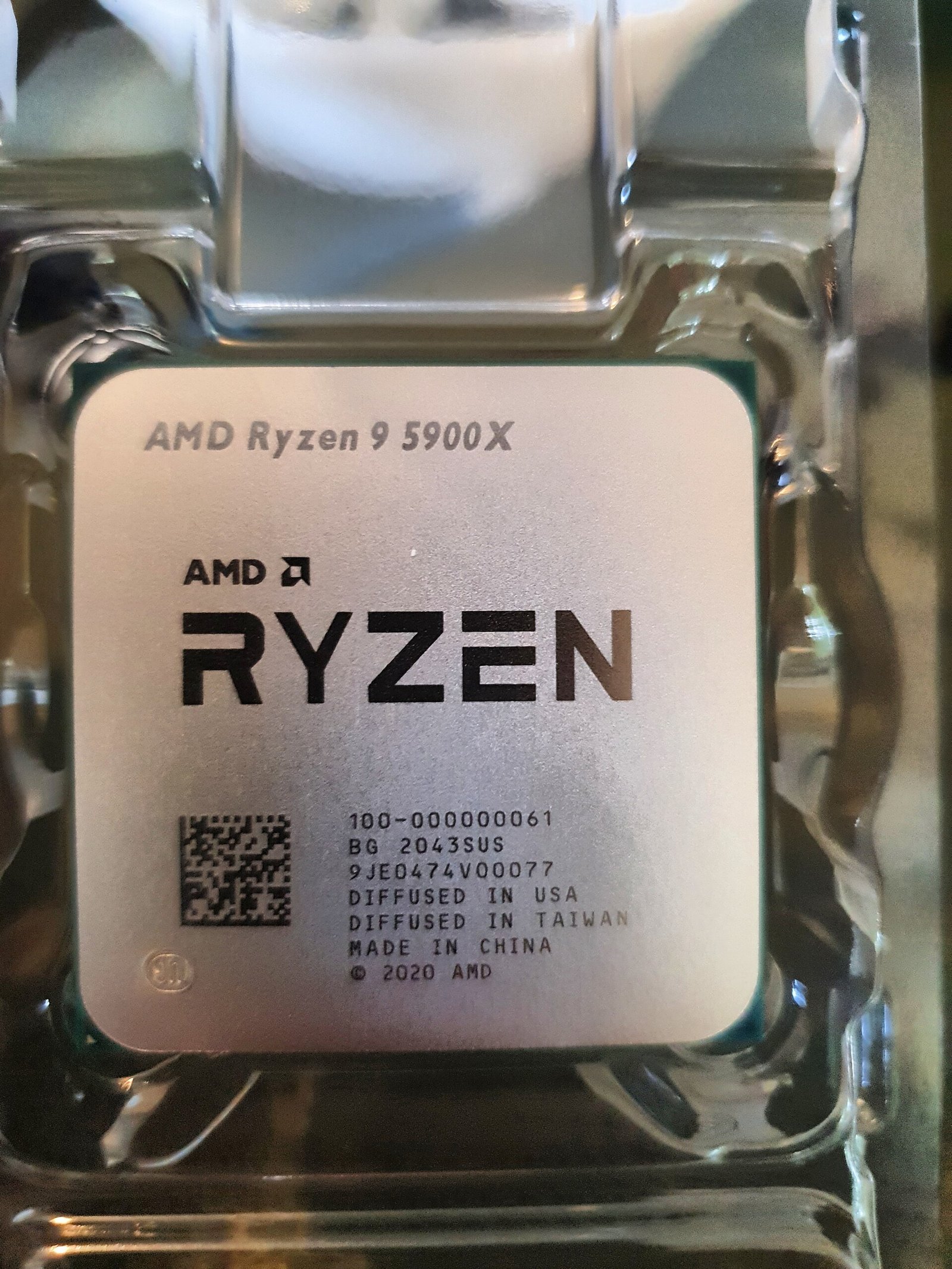
In Task Manager's Performance tab, click CPU. The model name appears in the top right corner, something like an Intel Core i5 or an AMD Ryzen 5 followed by numbers. Game publishers usually list one model from each brand, such as a Ryzen 5 from one generation and a Core i5 from another. You do not need that exact chip: you need an equivalent or newer processor in the same tier.
Graphics card (GPU) and VRAM
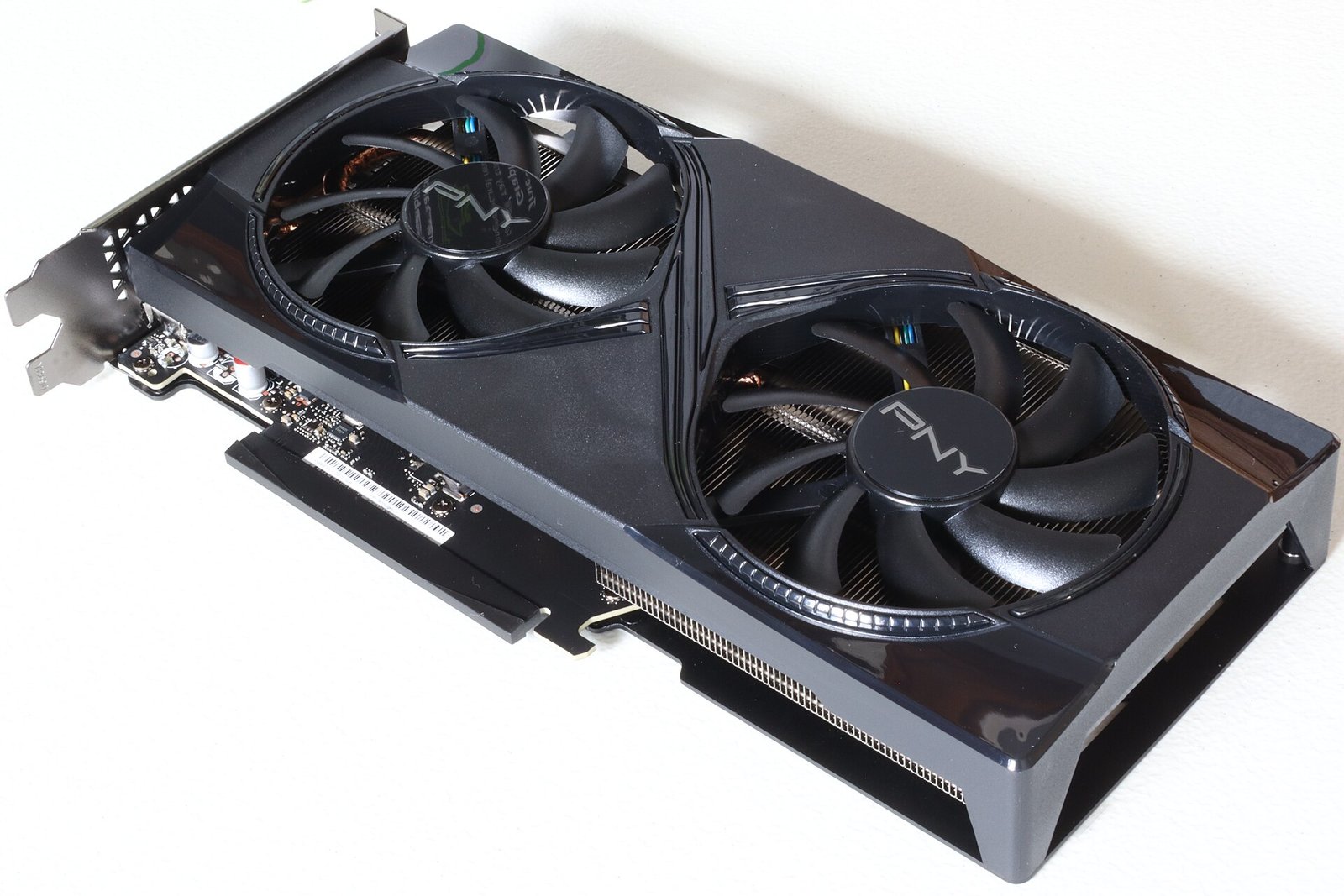
In the vast majority of cases the graphics card decides whether a game runs well. In Task Manager, click GPU. The model appears at the top and, just below, the Dedicated GPU memory, which is your VRAM. That is the number that matters. "Shared" memory is only a loan from system RAM and is not a substitute for real VRAM.
If your laptop or PC lists two GPUs (for example GPU 0 and GPU 1), one is the integrated graphics inside the processor and the other is the dedicated card. Game requirements refer to the dedicated one. More on that below, because it is one of the most common laptop mistakes.
System memory (RAM)
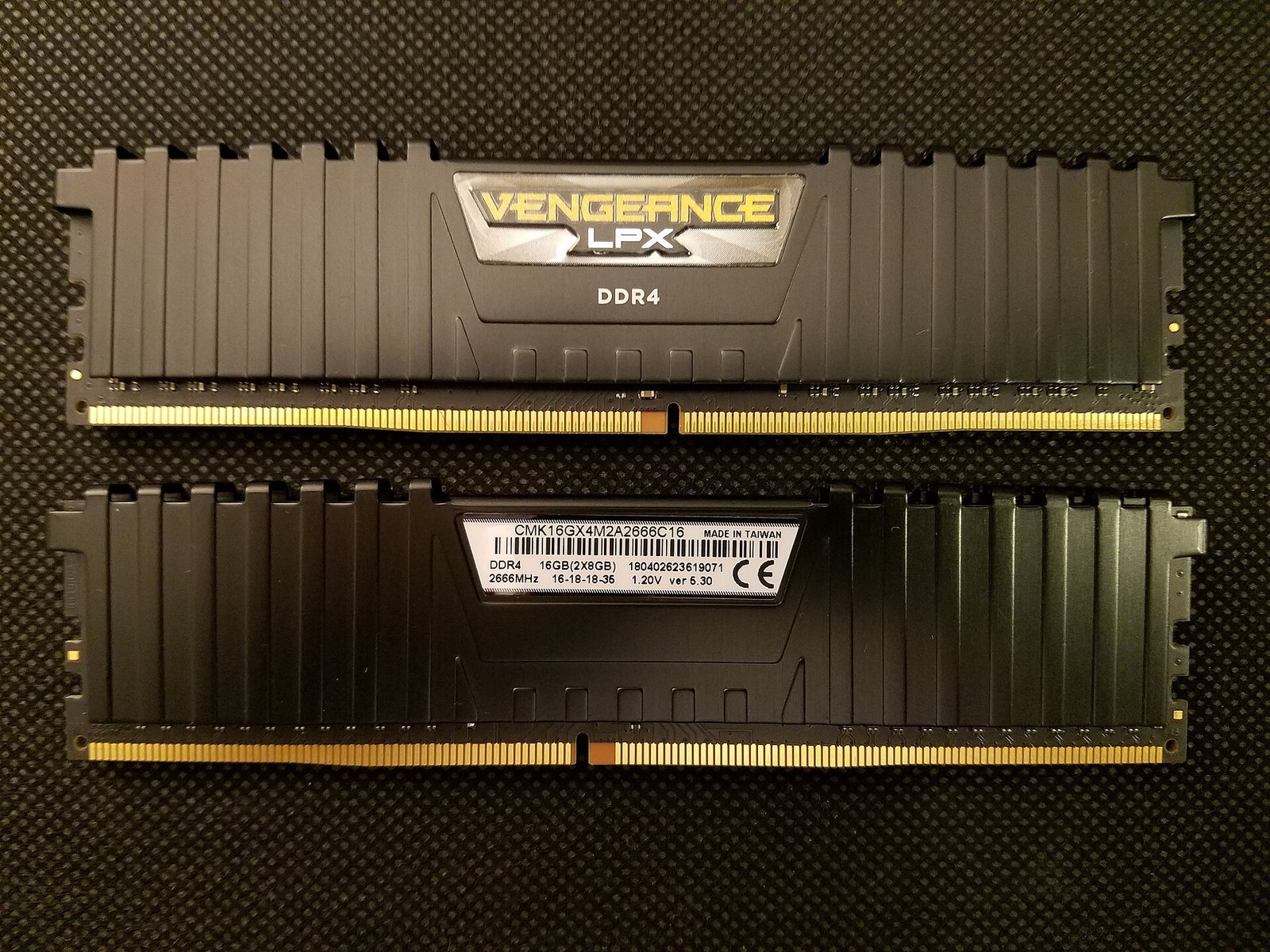
Still in Performance, click Memory. The total shows in the top right corner, in GB. Many recent games ask for 16 GB, while others still accept 8 GB as a minimum. It is also worth checking that your RAM is installed sensibly: two matching sticks usually perform better than a single one, but that is fine tuning, not a spec sheet requirement.
Storage: SSD or hard drive?
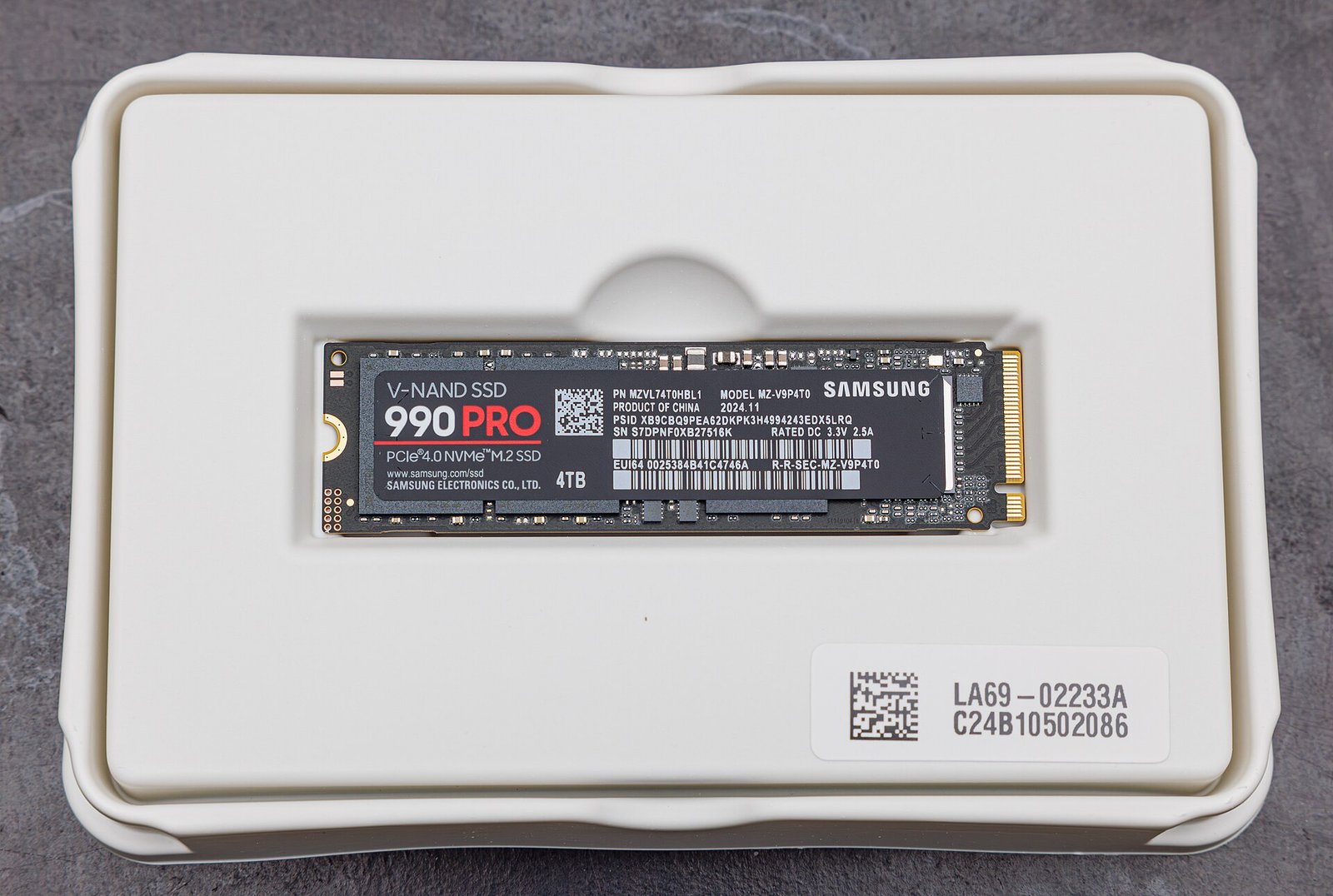
This is the item that catches people by surprise the most. Many current games list an SSD, not a hard drive, on the spec sheet, and in some cases the game stutters, takes forever to load or even refuses to launch on a mechanical disk. In Task Manager, open Disk and check whether the type reads SSD or HDD. Check free space too: the size in the store is the download size, and the installation plus update files usually need some extra headroom.
Step 2: read the game's spec sheet the right way
Open the game's page on Steam, the Epic Games Store, Battle.net or the publisher's website and look for the System Requirements section. There are almost always two columns: minimum and recommended. A lot of people look only at the minimum, see that they "pass" and buy. That is the first mistake.
The minimum requirement is, in practical terms, the floor at which the game launches and works. There is no industry standard for what that means in visual quality: every studio defines it its own way. To give you an idea, EA's official Battlefield 6 requirements page, checked on October 5, 2026, lists both tiers in full (with a 6 GB VRAM card at minimum and an 8 GB card for recommended), but it does not say what resolution or frame rate each tier delivers. In other words, the sheet tells you what the game asks for, not what you will see on screen.
That is why our reading is: the minimum tells you whether the game opens; the recommended tier is the more honest yardstick for whether it will be pleasant to play. If your PC sits between the two, expect medium or low quality, probably at 1080p. If it is below the minimum, the odds of real trouble are high.
As you read the list, check line by line:
- Operating system: Windows 10 or Windows 11? Some games already ask for the newer version in the recommended tier. Battlefield 6, for example, lists Windows 10 at minimum and Windows 11 for recommended.
- Processor: compare yours with the listed models, same generation or newer.
- Graphics card: the most important item. Compare the model and the VRAM.
- RAM: 8 GB, 16 GB or 32 GB. If you fall short, it is the cheapest upgrade.
- Storage: SSD or hard drive, and how many GB of free space.
- Extras: DirectX 12, internet connection, anti-cheat, TPM and Secure Boot.
Step 3: compare your PC with the sheet instead of guessing
Comparing a model name against a model name is easy when your chip is the same as the one on the list. It gets hard when the sheet names one card and you own another. Two resources help.
The first is an automatic tool. Can You RUN It, from System Requirements Lab, runs in your browser, reads your hardware and compares it with the requirements of thousands of games, showing the result for the minimum and recommended tiers. It works only on Windows and, like any automatic tool, gives an estimate: use it as a first filter, not a final verdict.
The second is a performance comparison. PassMark keeps a chart of more than 3,900 graphics card models tested and a tool that compares up to five cards side by side. Look up yours and the one the sheet names: if your score is similar or higher, you are on the right track. The same applies to processors. This kind of chart helps when the sheet names an older card or one from a different brand.
The requirements that catch everybody off guard
Even with plenty of processor and graphics card, some games will not launch because of details that do not appear on the first line of the sheet. These are the most common.
Windows 10 or Windows 11
Windows 10 support ended on October 14, 2025, according to Microsoft, and the consumer Extended Security Updates program runs for one more year from there. For gaming, that means more and more titles will treat Windows 11 as the default, especially in the recommended tier. If your PC is still on 10, start planning the move.
TPM 2.0 and Secure Boot
Some competitive games use anti-cheat that relies on your computer's own security features. On Battlefield 6's official requirements page, EA lists TPM 2.0 enabled and UEFI Secure Boot enabled in both tiers, along with HVCI and VBS capability. Without those on, the game will not start, even if your hardware is excellent.
To check, press Windows + R, type msinfo32 and look in System Summary for BIOS Mode (it should read UEFI) and Secure Boot State (it should read On). TPM shows up when you type tpm.msc. If something is off, you enable it in the BIOS, and the steps vary by motherboard, so follow your manufacturer's instructions or EA's help page on Secure Boot before changing anything.
DirectX 12 and an up-to-date driver
Many recent games list DirectX 12. Any reasonably modern graphics card meets that, but an outdated driver is a classic reason for crashes and frame drops. Before blaming your hardware, update the NVIDIA, AMD or Intel driver from the manufacturer's website.
A laptop running on the wrong GPU
On laptops with two GPUs, Windows sometimes sends the game to the integrated graphics to save battery. The symptom is terrible performance on a machine that should handle it on paper. Under Settings > System > Display > Graphics, add the game and choose High performance, then restart the game for it to take effect. Confirm in Task Manager which GPU is in use during a match.
How to read the result
Once you have made the comparisons, you land in one of three scenarios.
- Above recommended: great. You should be able to play at high or very high quality. The sheet does not promise that, but it is the safest scenario.
- Between minimum and recommended: the game should run, with trade-offs. Expect to lower quality or resolution to get smooth performance. This is where a hands-on test is worth gold.
- Below minimum: the game may not even launch. If it does, performance tends to be poor. The cheapest fix is usually more RAM or an SSD before a new graphics card, and it is worth waiting for a sale before any hardware purchase.
Test it in practice before you buy
No table replaces testing. There are three ways to cut the risk.
- Demo or beta: if the game has a free demo or an open beta, it is the perfect test and costs nothing.
- Steam refund: according to Valve, it will refund a game for any reason if you ask within 14 days of purchase and the game has been played for less than 2 hours. Two hours is enough to tell whether your PC can handle it. Read the exceptions, such as third-party purchases and pre-orders, before relying on it.
- Frame counter: while testing, turn on a monitor. On Windows, press Windows + G to open the Xbox Game Bar and enable the Performance widget, which shows FPS and CPU, GPU, RAM and VRAM usage. On Steam, there is a performance counter in the in-game settings (Settings > In Game, with the name varying by client version).
As a yardstick, a widely used community reference is to aim for at least 30 stable frames per second in slower-paced games and close to 60 in action games, but that is personal preference, not a technical rule. More important than the average number is stability: sudden drops bother you more than a lower, steady rate.
Right on the edge? What you can do
If your PC is in the middle tier or slightly below, before thinking about an upgrade, try the following, in this order:
- Update your graphics driver.
- Close your browser, extra launchers and background programs that eat memory.
- Lower the resolution or the texture and shadow quality, which tend to be the heaviest options.
- Turn on an upscaling technology when the game offers one, such as DLSS, FSR or XeSS, which renders at a lower resolution and reconstructs the image. If you want to understand NVIDIA's newest technology, read our piece on how DLSS 5 works, which GPUs are supported and the confirmed games.
- If the game has a performance mode, use it.
If none of that works, then consider an upgrade, and start with the item the sheet demands most: graphics card, RAM or SSD.
Examples to train your eye
Nothing teaches better than reading real spec sheets. If you want to practice with games that are trending, see how requirements are laid out in our own guides: the piece on Modern Warfare 4's final PC specs, October 15 preload and early campaign access, the guide to Gears of War: E-Day release time, PC requirements and Game Pass and the story on AION 2's servers, price and PC requirements. Compare each one's minimum and recommended tiers with the numbers you wrote down in Step 1.
Our take
Most of the frustration PC players run into comes from three mistakes: assuming the minimum guarantees a good experience, forgetting the SSD and the security requirements, and trusting automatic tools alone. The right process is simple and takes ten minutes: know your hardware, compare it with the recommended tier, check the extras and test with a demo or a refund. Anyone who does that avoids most bad purchases and finds out in advance which upgrade is actually worth it. If your PC is far below what the sheet asks for, the cheapest decision is still usually to wait for a sale or pick another game, not to spend on hardware on impulse.
The requirement data cited here was checked against official pages on October 5, 2026. Spec sheets change, so always confirm on the game's official page before you buy.
Frequently asked questions
How do I know if my PC can run a game?
Check your processor, RAM, graphics card (with VRAM) and storage type in Task Manager and compare them with the game's minimum and recommended requirements. Add a tool like Can You RUN It and, if you can, test with a demo or Steam's refund.
Is the minimum requirement enough to play?
In general, the minimum guarantees that the game opens and works, not that it is enjoyable. Each studio defines the minimum differently and many sheets do not state the visual quality or frames per second to expect. The recommended tier is the safer reference.
My PC has integrated graphics. Will it run?
It depends on the game. If the sheet asks for a specific dedicated card, integrated graphics tend to fall short. For lighter games, such as many indie titles, it may run. Check the exact model in Task Manager and compare it on PassMark.
Do I need an SSD to play?
More and more games list an SSD on the spec sheet, and some have serious problems on a mechanical hard drive. If the sheet asks for an SSD, treat it as a real requirement, not a suggestion.
How much VRAM do I need?
It depends on the game and the resolution. As a reference, the Battlefield 6 sheet lists 6 GB at minimum and 8 GB for recommended. Always check the exact number on the sheet of the game you want to buy.
Is Windows 10 still fine for gaming?
Many games still run on Windows 10, but Microsoft's official support ended on October 14, 2025, and some games already ask for Windows 11 in the recommended tier. If you can, make the move.
What are TPM 2.0 and Secure Boot, and why do games ask for them?
They are security features of your computer. Some competitive games, such as Battlefield 6, require both to be enabled for the anti-cheat to work. You can check their state with msinfo32 and tpm.msc.
Can I get my money back if the game does not run?
On Steam, yes, within Valve's rules: up to 14 days after purchase and under 2 hours played. Other stores have their own policies, so check before you buy.